
User Guide
Practical information about the Proud Nerds SEO & GEO WordPress plugin.
Introduction
Professional WordPress solution for SEO and AI search engine optimization
The Proud Nerds SEO & GEO plugin is a professional WordPress solution that leverages artificial intelligence to optimize your content for both traditional search engines (Google, Bing) and the new generation of AI search engines (ChatGPT, Perplexity, Claude).
What is GEO (Generative Engine Optimization)?
GEO stands for Generative Engine Optimization – optimization for AI-driven search engines and answer systems. While traditional SEO focuses on high rankings in search results, GEO ensures your content is optimally discovered and cited by AI systems such as:
- ChatGPT (OpenAI)
- Perplexity AI
- Claude (Anthropic)
- Google Gemini
- Microsoft Copilot
- Other Large Language Models (LLMs)
Why is GEO important?
AI search engines work fundamentally differently than traditional search engines:
- Direct answers: AI systems provide answers directly instead of a list of links
- Content synthesis: They combine information from multiple sources
- Citations: They mention sources where information comes from
- Context understanding: They understand meaning and context, not just keywords
With GEO optimization, you increase the likelihood that your content will be cited and used by these AI systems, resulting in more authority in your field, higher brand awareness, valuable backlinks from AI-generated content, and future-proof discoverability.
Who is this plugin intended for?
The Proud Nerds SEO & GEO plugin is suitable for:
- Content Creators & Bloggers: Automatically optimize articles for maximum discoverability by both people and AI systems.
- Marketing Professionals: Ensure your company content is found and cited in AI-generated search results.
- SEO Specialists: Extend traditional SEO with future-focused GEO optimization and detailed analyses.
- WordPress Agencies: Offer customers advanced SEO/GEO services with automated workflows and extensive reporting.
- E-commerce: Optimize product pages and categories for maximum discoverability in all search engines.
Key Features
- AI-Driven Content Analysis: Automatic language detection (Dutch, English, German, French, Spanish, etc.), detailed quality analysis, content score based on 5 categories, and GEO score based on 14 categories
- Smart Metadata Generation: Automatic SEO metadata (title, description, keywords), Open Graph tags for social media, Twitter Cards, Schema.org JSON-LD structured data, and canonical URLs and robots meta tags
- GEO Optimization: The plugin analyzes and optimizes 14 crucial GEO aspects such as Opening Answer, Semantic Structure, E-E-A-T Signals, Schema Quality, FAQ Section, and more
- Queue System: Background processing of 1-3 concurrent scans with automatic scanning on first publication
- Multilingual: Compatible with WPML and Polylang, automatic language detection per post/page, multilingual sitemaps
- Advanced SEO Features: XML sitemaps, Robots.txt generation, llms.txt for AI crawlers, breadcrumb navigation with schema.org markup, archive indexing
Installation and License
Install the plugin, activate it, and configure the license
System requirements
Before installing the plugin, check that your server meets the following requirements:
- WordPress: 6.0 or higher
- PHP: 8.3 or higher (recommended: 8.4)
- Memory Limit: 256MB or higher
- Max Execution Time: 60 seconds or more
Install the plugin
- Download the plugin – Download the plugin ZIP file from your account or via the provided link
- Upload to WordPress – Go to Plugins → Add New, click Upload Plugin, choose the ZIP file, and click Install Now
- Activate the plugin – Click Activate Plugin once the installation is complete
Activate the license
After installation, you must activate your license to access the AI services.
Obtain a license
- Purchase a license via the Proud Nerds website
- Receive your license key by email (format:
PNSGX-XXXX-XXXX-XXXX-XXXX)
Activation steps
- Navigate to SEO & GEO → Settings → Plugin License
- Paste the license key into the “License Key” field
- Click Validate License
- Upon successful validation, you will see a green notification and the license status will show “Active”
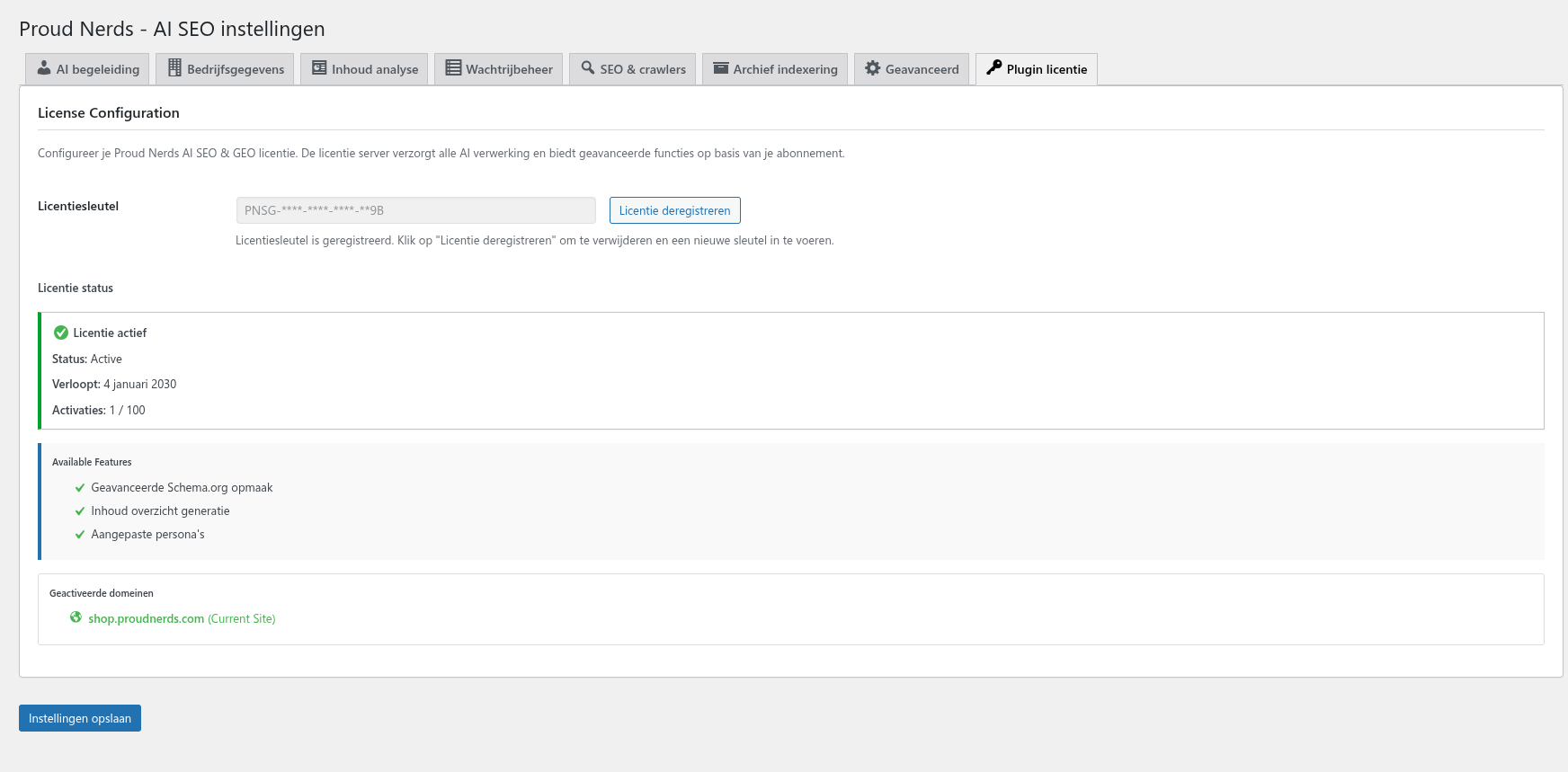
License information
After activation you will see:
- License Status: Active, Expired, or Invalid
- Credits: Available API credits (each content analysis costs credits)
- Expires At: Expiration date of your license
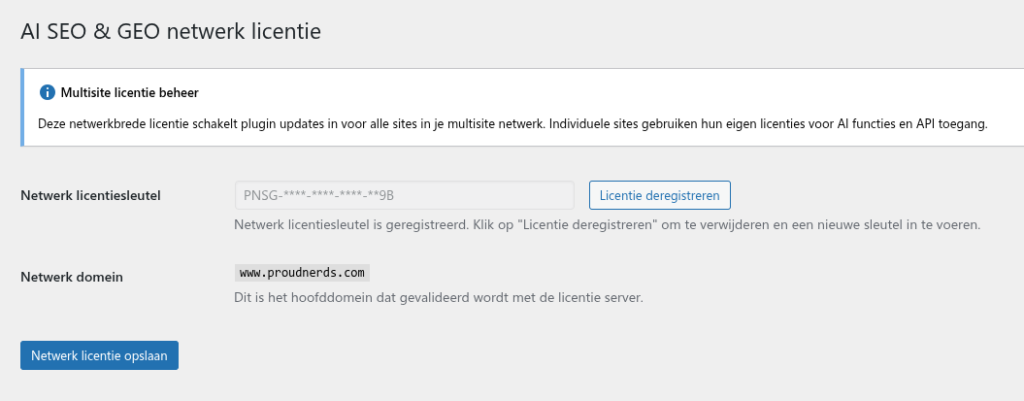
Multisite configuration
For WordPress Multisite installations:
- Activate the plugin network-wide via Network Admin → Plugins
- Go to Network Admin → SEO & GEO → Network Settings
- Enter the network license – all subsites now use this license
- Individual sites can configure their own settings but share the credits
First verification
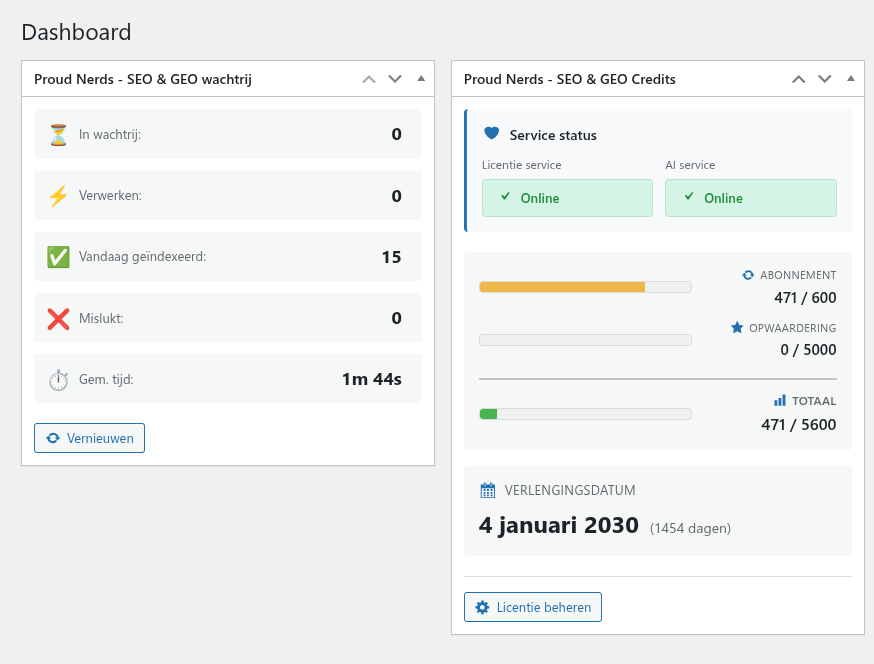
After installation and activation, check:
- License status is “Active” with available credits
- Dashboard widget “SEO & GEO License” is visible
- SEO & GEO metabox appears on posts and pages
Configuration
Configure the plugin according to your preferences and requirements
After installation and license activation, configure the plugin according to your preferences. Go to Settings → AI SEO & GEO in the WordPress admin menu.
Tab overview
- Plugin License – License management
- AI Guidance – AI steering and personas
- Company Data – Company data for schema.org
- Content Analysis – Content analysis settings
- SEO & Crawlers – SEO features and crawler control
- Archive Indexing – Index archive pages
- Queue Management – Queue management
- Advanced – Advanced options
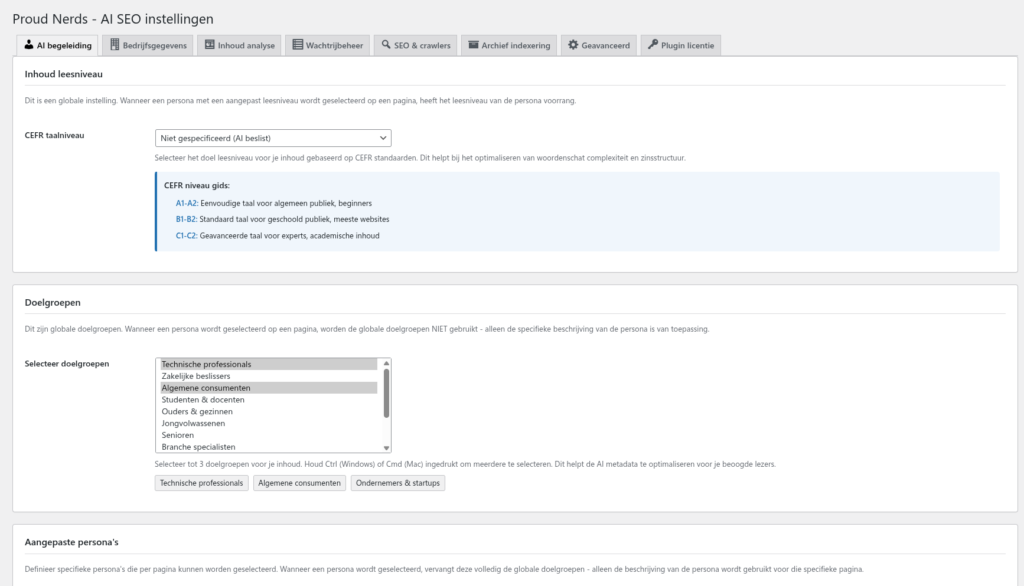
AI Guidance
This tab determines how the AI analyzes your content and generates metadata.
Language level
Set the desired language level for generated metadata:
- Not specified – AI chooses automatically
- A1-A2 – Simple, for beginners
- B1-B2 – Intermediate, for a general audience (recommended)
- C1-C2 – Advanced, for specialists
Recommendation: Choose B1-B2 for most websites. This ensures clear, readable content that is broadly accessible. The language level is used during analyses to generate metadata at a specific level, and the content analysis checks whether the page writing style matches the selected language level.
Target audience
Select up to 3 target audiences for your content: Technical Professionals, Business Decision Makers, General Consumers, Students & Educators, Parents & Families, Young Adults, Senior Citizens, Industry Specialists, Entrepreneurs & Startups, Healthcare Professionals, Creative Professionals, Hobbyists & Enthusiasts.
Personas
This option is available with the Gold and Platinum licenses. You can describe/define up to 10 different personas here, so that you can address a different language level and target audience per page analysis. If this feature is active and you have defined personas, you will get a separate metabox at page level where you can select the persona.
The analyses then use this additional information to generate target-audience-specific metadata and to tailor the improvements to your persona as well.
A few examples of personas:
- TITLE
Healthcare professionals - LANGUAGE LEVEL
C2 - PERSONA DESCRIPTION
A highly educated healthcare professional who reads critically and prioritizes content over marketing. Expects web copy with a clear objective, explicit key messages, correct professional terminology, and consistent definitions. Values logical structure, summaries, subheadings, and concrete implications for healthcare practice. Avoids vagueness, repetition, and excessive simplification. Wants factual, up-to-date, and verifiable information that is directly applicable in professional practice.
Or for example
- TITLE
Newcomer to the Netherlands - LANGUAGE LEVEL
A2 - PERSONA DESCRIPTION
A recently arrived migrant who has basic knowledge of Dutch and actively seeks information to understand daily life. Appreciates web copy that is simple, clear, and concrete, with short sentences and familiar words. Expects practical explanations, visual support, and step-by-step information. Avoids abstract language and long paragraphs. Wants to feel welcome, respected, and supported.
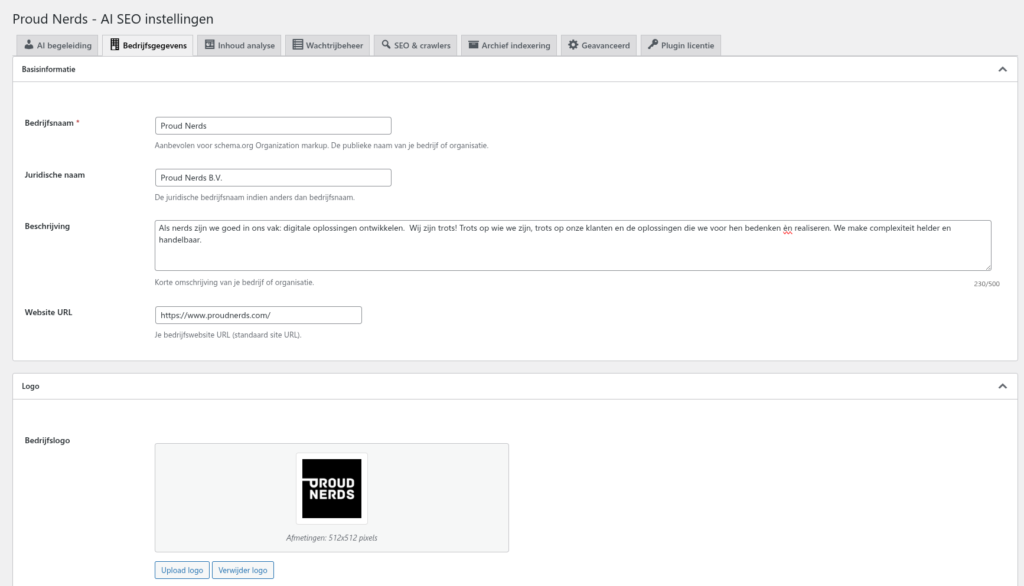
Company data
This data is used for schema.org structured data and enriches your SEO.
- Company Type: Organization, LocalBusiness, Corporation, EducationalOrganization, GovernmentOrganization, NGO
- Legal Name: Official company name as registered with the Chamber of Commerce (KvK)
- Company Name: Brand name or trade name
- Company Description: Short description (150-300 characters recommended)
- Website URL: Full URL including https://
- Contact Information: Email, phone number (+31 format), social media profiles
- Address details: Only required for LocalBusiness type
- Company Logo URL: PNG with transparent background, at least 600x60px
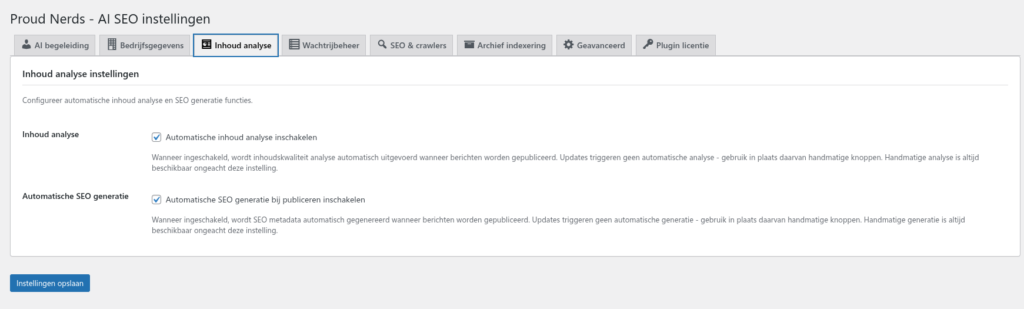
Content analysis
- Content Analysis Enabled: Enable/disable the content analysis feature
- Auto-Generate on Publish: New posts are automatically added to the queue on first publication (updates do not trigger automatic analysis)
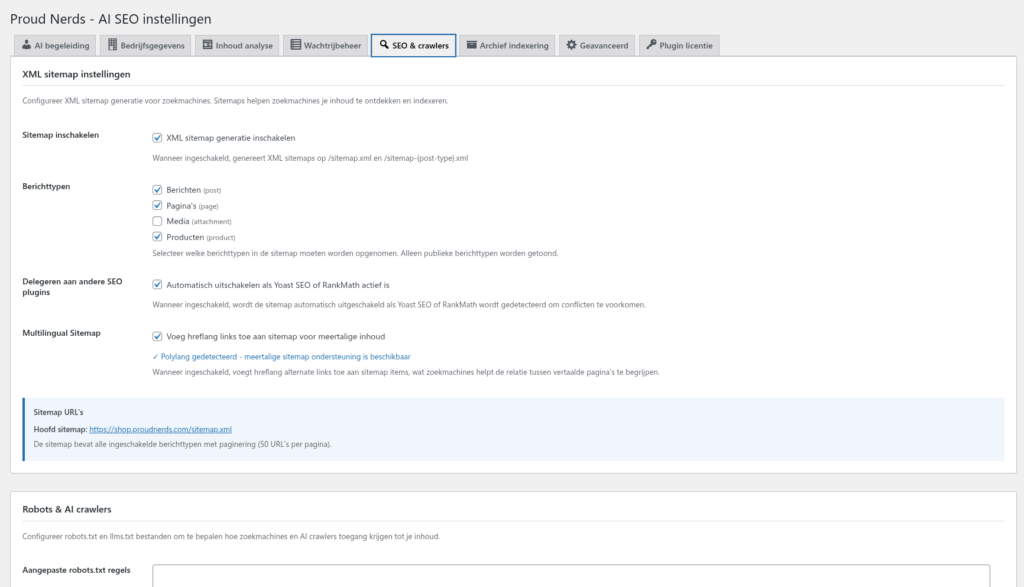
SEO & Crawlers
XML sitemap
- Enable sitemap (accessible via
/sitemap.xml) - Select which post types should appear in the sitemap
Robots.txt
- Enable Custom Robots.txt (accessible via
/robots.txt) - Add your own robots.txt rules for specific bots
llms.txt for AI crawlers
- Enable llms.txt for AI crawlers such as ChatGPT and Perplexity (accessible via
/llms.txt) - Add additional information for AI systems
Breadcrumbs
- Enable breadcrumbs with schema.org markup
- Choose separator:
/,>,→,•
Archive indexing
Index and optimize archive pages (category, tag, author). Select which archive types should be indexed and enable automatic SEO metadata generation.

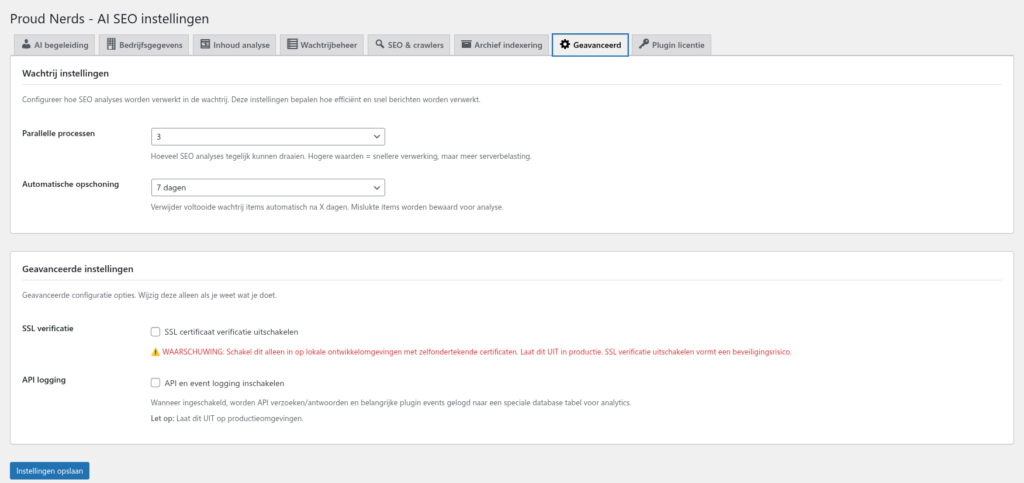
Advanced
- Concurrent Scans: 1 scan (lowest server load), 2 scans (balanced, default), 3 scans (fastest processing)
- Debug Mode: Enable extensive logging for troubleshooting (only when issues occur)
Recommended initial configuration
- AI Guidance: Language Level B1-B2, Target Audience General Consumers
- Company Data: Fill in all basic information, add the logo URL
- Content Analysis: Enabled with Auto-Generate
- SEO & Crawlers: XML sitemap, Robots.txt, llms.txt, and Breadcrumbs enabled
- Advanced: Concurrent Scans set to 2, Debug Mode disabled
Working with Content
Create and optimize content with the SEO & GEO plugin
This guide shows how to use the Proud Nerds SEO & GEO plugin when creating and optimizing content.
The SEO & GEO metabox
Each post and page gets an “SEO & GEO” metabox with all optimization options. The metabox appears below the content editor (Classic Editor) or in the right panel (Gutenberg/Block Editor).
Metabox not visible? Click Screen Options at the top right and check “SEO & GEO” (Classic Editor), or click Preferences and check “AI SEO & content analysis” under General (Gutenberg).
Automatic workflow
First publication
When you publish a new post:
- Publish the post as usual
- The plugin detects the new publication
- The item is automatically added to the queue
- Background processing starts (within 1-5 minutes)
- Analysis complete – metadata is saved
- The metabox shows results when you reopen the post
Updates to existing posts
Important: Updates do not trigger automatic re-analysis. This prevents unwanted overwriting of manual adjustments, wasting credits on small changes, and unexpected metadata changes.
For re-analysis after an update: use the manual trigger.
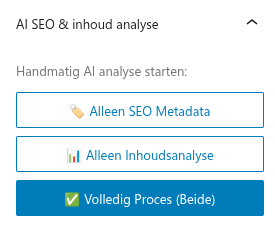
Manual triggers
You have full control over when content is analyzed.
- Start analysis: Click the “Analyze Content” button in the metabox
- Regenerate metadata: Click “Regenerate Metadata” to refresh existing data (costs credits and overwrites existing metadata)
SEO metadata fields
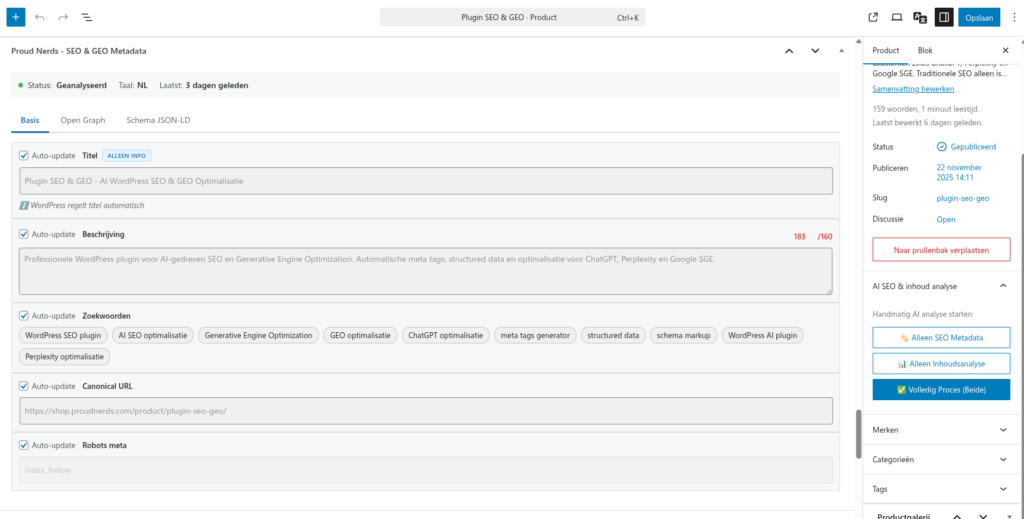
Title (SEO Title)
- Recommended length: 50-60 characters
- Checkbox “Auto-update”: Checked = automatic updates on regeneration, Unchecked = keep manual changes
Description (Meta description)
- Recommended length: 150-160 characters
- Tips: Write compelling descriptions, use a call-to-action, avoid keyword stuffing
Keywords
- Comma-separated, 3-5 keywords recommended
- Help with internal organization and content theme identification
Canonical URL
- Default: The post’s own permalink
- Change for: Duplicate content, syndicated content, URL consolidation
Robots meta
index, follow(default)noindex, follow– Do not index, but follow linksindex, nofollow– Index, but do not follow linksnoindex, nofollow– Do not index and do not follow links
Social media metadata

- Open Graph tags: For Facebook, LinkedIn (og:title, og:description, og:image, og:type)
- Twitter Cards: For Twitter/X (twitter:card, twitter:title, twitter:description, twitter:image)
Schema.org structured data

JSON-LD schema for enhanced search results. Generated automatically: Article schema for posts, WebPage schema for pages, Breadcrumb schema, Organization schema. Manual editing is possible but requires JSON knowledge.
Auto-update management
Crucial feature: determine per field whether automatic updates are applied.
- Auto-update checked: Field is overwritten with new AI generation upon regeneration
- Auto-update unchecked: Field remains unchanged; manual text is preserved
Best practices
Turn Auto-update OFF for: Fields you have edited manually, custom social media texts, specific keywords, customized schema.org data.
Leave Auto-update ON for: Fields you are happy with AI generation, canonical URLs (usually automatically correct), robots meta (unless you have specific requirements).
Content quality score
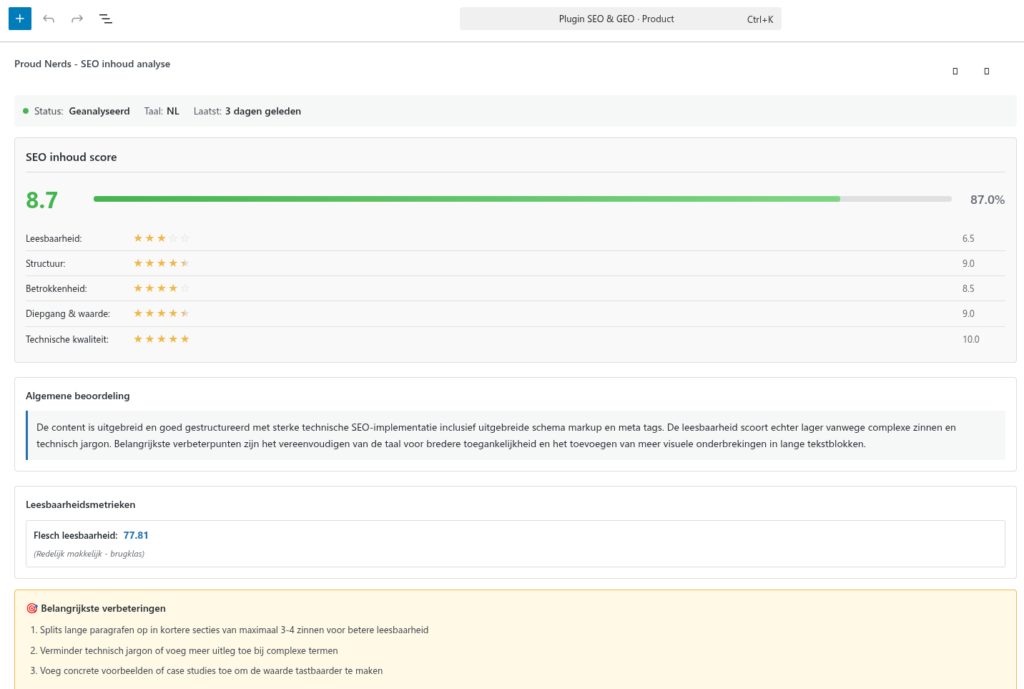
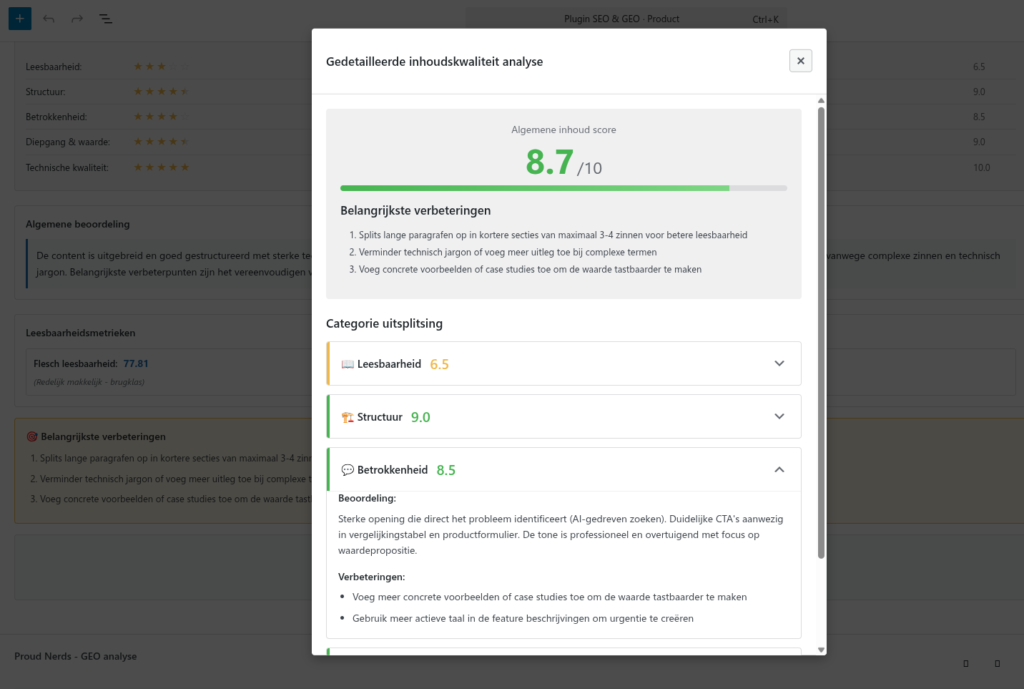
In addition to SEO metadata, you get a content quality score on a 0-10 scale:
- 🟢 > 8.5: Excellent
- 🟡 6 – 8.5: Good
- 🔴 < 6: Needs Improvement
The score consists of 5 categories: Readability, Structure, Engagement, Depth, and Technical.

Multilingual content
The plugin automatically detects the language of your content (Dutch, English, German, French, Spanish) and generates metadata in the detected language. When using WPML or Polylang, each translation gets its own SEO metadata with automatic language detection.
Bulk actions
To optimize multiple posts at once:
- Go to Posts → All Posts
- Select multiple posts (checkbox)
- Choose Bulk Actions → Analyze with AI SEO
- Click Apply
- All selected posts are added to the queue
Note: Credits are used for each post.
Understanding the GEO Score
How well your content is optimized for AI search engines
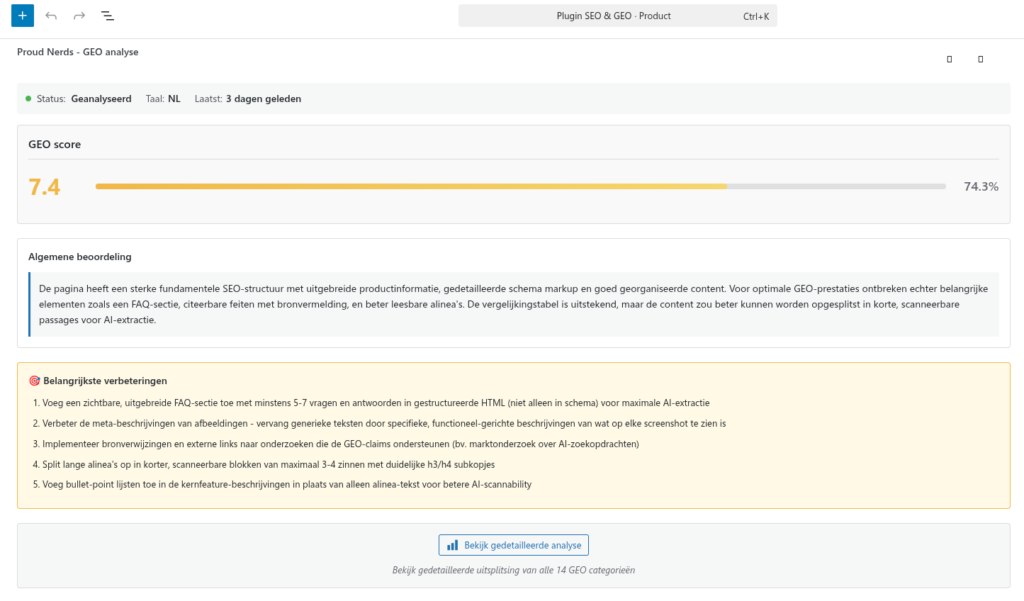
The GEO (Generative Engine Optimization) score is a unique metric that measures how well your content is optimized for AI search engines such as ChatGPT, Perplexity, Claude, and other Large Language Models.
What is the GEO Score?
Displayed in the plugin: 0-10 rating
- 10.0: Perfect for AI search engines
- 7.5-9.9: Excellent
- 5.0-7.4: Good
- 2.5-4.9: Fair
- 0-2.4: Needs Improvement
The 14 GEO categories
Each category measures a specific aspect that is important for AI search engines:
- Opening Answer – A direct answer at the beginning. AI systems look for direct answers to questions.
- Semantic Structure – Logical structure with clear headings and subheadings. AI understands content better when it is logically structured.
- E-E-A-T Signals – Expertise, Experience, Authoritativeness, Trustworthiness. AI systems evaluate sources for reliability.
- Schema Quality – Quality of schema.org structured data. AI reads structured data to understand content.
- FAQ Section – Question & answer sections. AI systems use FAQs for direct answers.
- Citeable Facts – Concrete, citable facts and statistics. AI systems like to cite specific facts with sources.
- Formatting – Visual formatting that improves readability. Well-formatted content is easier to parse.
- Scannability – How quickly and easily content can be scanned with informative headings and short paragraphs.
- Meta Description – Quality of the meta description tag. AI uses this to understand content.
- Internal Linking – Quality and relevance of internal links. AI uses these to find related content.
- Data Tables – Use of tables for structured data. AI can parse data from tables perfectly.
- Image Alt Text – Quality of alt texts. AI can only understand images via alt texts.
- Author/Publisher Schema – Completeness of author and publisher structured data for credibility.
- Breadcrumbs & Citations – Navigation and source referencing. Helps AI understand the content structure.
Score interpretation
Note: A high GEO score does not guarantee rankings, but it:
- Increases the likelihood of being cited by AI
- Improves overall content quality
- Helps with traditional SEO as well
- Makes content future-proof
Applying improvement points
At the top of the GEO report, you will see the Top 3 Improvements across all categories. Prioritize these for maximum impact:
- Start with the top 3
- Implement the changes
- Regenerate metadata
- Review the new score
Realistic goals
Not all content needs a perfect 10.0. For many page types, a score between 7.0 and 8.5 is already sufficient. For the most important pages, try to achieve a score of 8.5 or higher.
GEO score monitoring
- Dashboard widget: Shows the average GEO rating, distribution per score range, and trend over time
- Admin columns: GEO rating badge per post in the overview, clickable for a detailed report, sortable
Troubleshooting
Solve common issues and get help
This chapter helps you troubleshoot common issues and answers frequently asked questions.
Frequently asked questions (FAQ)
SEO (Search Engine Optimization) optimizes for traditional search engines such as Google and Bing. GEO (Generative Engine Optimization) specifically optimizes for AI search engines such as ChatGPT, Perplexity, and Claude. The plugin does both: traditional SEO metadata as well as GEO optimization.
The plugin can be used alongside Yoast SEO or Rank Math. They focus on on-page analysis; our plugin provides AI generation and GEO optimization. For best results: use both in a complementary way.
There are 2 types of analyses:
- SEO metadata analysis
- Content analysis
Both types of analysis cost 1 credit. On the first publication of a page, both analyses are performed so the page becomes optimally discoverable. After changes to existing pages, you can decide which analysis should be run again.
Yes, fully multisite compatible with network-wide license support. See the Multisite configuration section for details.
Possible causes: Auto-Generate is disabled (check Settings → Content Analysis), the post is not a first publication (updates do not trigger automatically), the post type is not supported, or WordPress cron is not working.
Cause: The Auto-update checkbox is still checked. Solution: Uncheck “Auto-update” for the edited field and update the post. Your change will now be preserved on regeneration.
Step-by-step improvement: Review the Top 3 Improvements in the metabox, identify the lowest-scoring categories (< 5 points), read improvement suggestions per category, implement 1-3 improvements in the content, regenerate metadata, and repeat until satisfied.
Diagnosis: Check WordPress cron, check concurrent scans (all slots may be occupied), check server load. Solutions: Wait longer (until the processing interval, max 15 min), lower concurrent scans to 1 (Settings → Queue Management), test wp-cron, or set up a system cron if wp-cron is not working.
Solution: Go to Settings → Permalinks, click Save Changes (without changing anything), clear cache (if using a caching plugin), and test the sitemap again.
Solution: Click “Screen Options” at the top right of the dashboard, check the desired widgets, and scroll down to see the widgets.
Server & hosting issues
PHP version too low
Error: “Plugin requires PHP 8.0 or higher”
Solution: Check your current version via php -v or cPanel → PHP Info. Update via your hosting control panel to PHP 8.0+. Recommended: PHP 8.2 or higher. Contact your hosting provider if you do not have access.
Memory limit too low
Error: “Allowed memory size exhausted”
Solution: Add to wp-config.php:
define('WP_MEMORY_LIMIT', '256M');
define('WP_MAX_MEMORY_LIMIT', '512M');
Debug mode
For complex issues, enable debug mode via Settings → Advanced. Logs are stored in /wp-content/uploads/wp-ai-seo-logs/. Disable debug after troubleshooting – logs can become large.
Contact & support
Email Support: support@proudnerds.com (response within 24-48 hours)
Collect before contacting us: WordPress version, PHP version, plugin version, hosting provider, active plugins, exact error message, steps to reproduce, screenshots if relevant, debug logs if enabled.
Useful tools
- SEO Testing: Google Search Console, Google Rich Results Test, Schema.org Validator
- WordPress: WP-CLI
Closing
Do you have questions that are not covered in this guide? Contact our support team at support@proudnerds.com
Guide Version: 1.0
Last updated: January 2026